The software is the workflow.
Eight workbenches. One complete production workflow.
Professional production brings different roles and different ways of working.
Eight workbenches make every step of creation controllable and manageable.
The infinite canvas isn’t the only answer to AI filmmaking.
Gather inspiration. Brainstorm together. Creation begins with a spark worth saving.
A photo, a note, a shot that suddenly comes to mind—every spark is worth saving. Work and discuss together in real time, and bring your inspiration into AI creation as a reference.
- Organize inspiration
- Create together
- Reuse assets
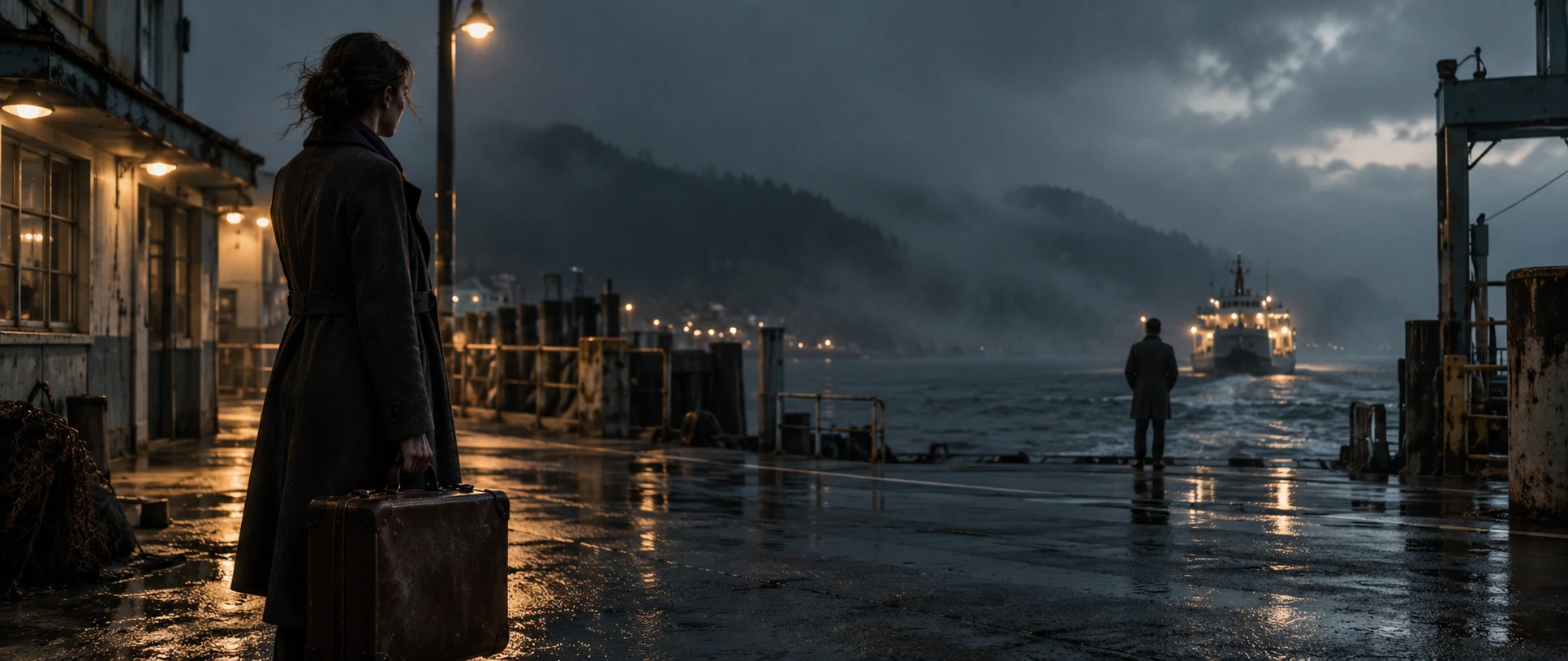
Set the composition,
then refine the action and rhythm.
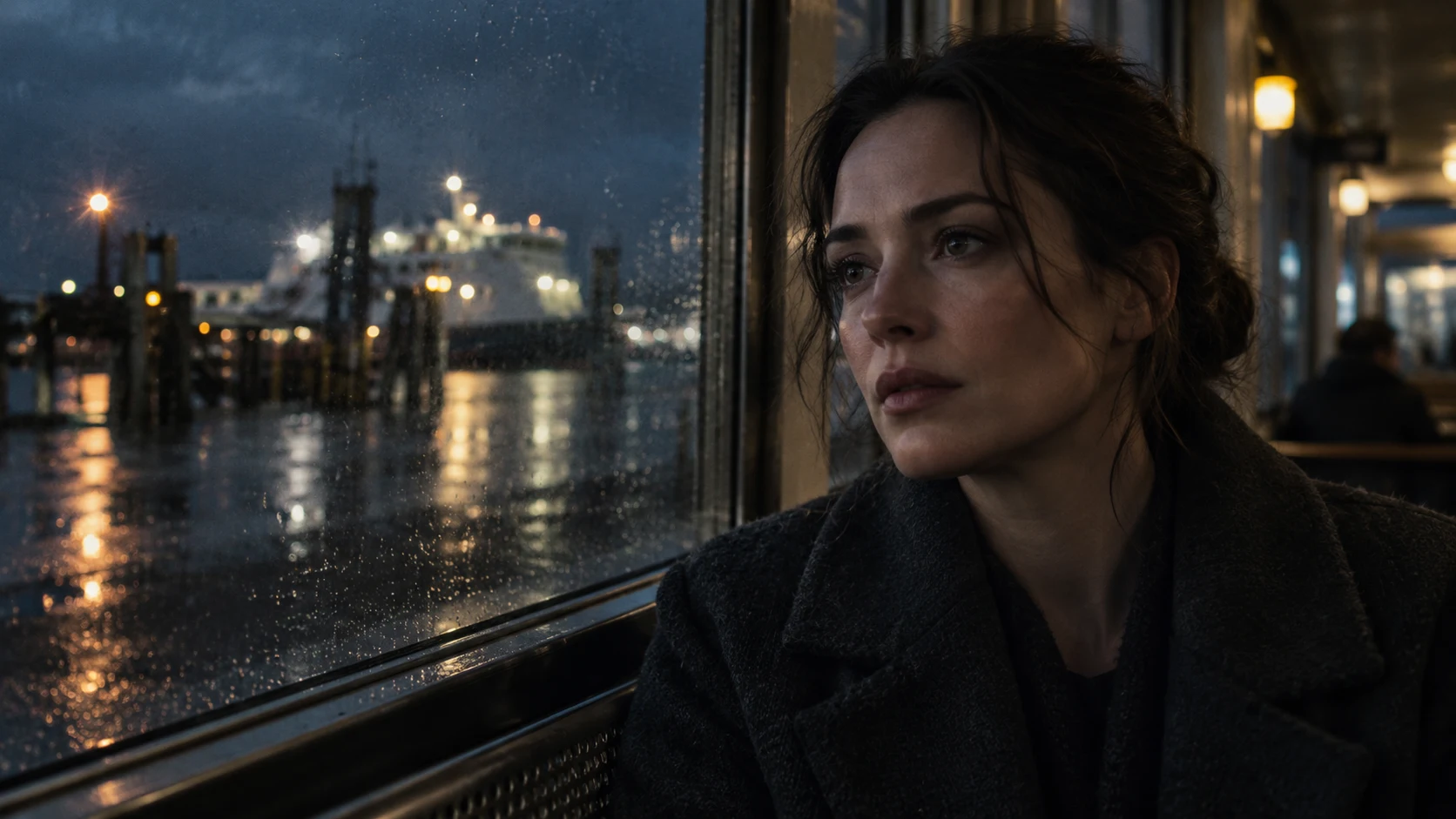
Cinematographer
Let the camera slow down here.
Write in professional formats. Revise for production.
Features, short dramas, commercials or stories still taking shape. Start with the right script format, so creativity and production speak the same language.
- WGA
- AV script
- Freeform
- Locked scene numbers
12 EXT. LOCATION A — NIGHT
Lights glow in the distance. A character enters the frame.
CHARACTER A stops and looks toward CHARACTER B off screen.
Ready?
CHARACTER BReady. Let's begin.
13 INT. LOCATION B — NIGHT
Turn the story into shots you can make.
What to shoot, how to shoot it, and how long to hold. Express your vision through precise shot design. AI helps develop it; the creator decides the way forward.
- Shot-by-shot design
- Framing and movement
- AI assistance
- Director review
Manage production assets together. Keep your story consistent.
Generate and manage characters, scenes and props together. Establish a character’s appearance, then create different looks. With World Labs world models, turn text or images into 3D scenes. Shared character and spatial references keep both the story and the team consistent across shots.
- Character generation & looks
- Locations and props
- Reusable references
- Shared with the team
Base appearance Primary referenceCostume & makeup Scene 12The picture in your head. Clear to your team and AI.
Make your creative intent easy to see. Sketch a few lines or collage existing elements. Agree on the shot before bringing it into the studio.
- Freehand drawing
- Quick collage
- Visual communication
- PPT / PDF export
Character position← Left third
Spatial relationshipForeground character / Background depth
Bring the studio onto your computer. Give your ideas a place to play out.
Build your own set on your computer. Dress the scene, block the performers, and choose camera positions and movement. Start with an idea and bring the shot to life, one decision at a time.
- 3D framing
- Animation previs
- Actor and camera blocking
- AR Virtual Camera
Generate with intent. Review every take.
Bring reference images, character assets and shot direction into video generation. Choose a mode, select camera movement visually, assign performers, then compare takes to find the right expression.
- Visual camera moves
- Reference-guided generation
- Compare takes
- Comment and approve
TAKE 01 · Slow push-inTurn shots into a story. Preview its rhythm in a rough cut.
Organize shots, refine transitions and timing, and complete a rough cut in Rolin. Export the edit to Final Cut Pro, Premiere Pro or other professional tools when you are ready for fine cutting.
- Build your own timeline
- Whole-film rhythm
- Rough-cut preview
- Post-production handoff
12-0112-0212-0312-04