A clear scope for each task
Confirm the project and task in Rolin, choose read or edit access, and pause or end control when needed.
Connect ChatGPT (Codex) or Claude. Let your familiar assistant understand the current project and carry creative tasks into the production workbenches.
✓ Read the current workbench context
✓ Prepare changes for review
→ Bring the results into your production workflow
Currently supports ChatGPT (Codex) and Claude Desktop.
From revising scripts and breaking scenes into shots to creating character, scene and prop assets, building 3D scenes, and adjusting cameras and animation, your Agent can help move production forward in the context of your project. The results stay in your workbenches for you to review and refine.
From the scope of a task to the result you choose, your production decisions guide the work.
Confirm the project and task in Rolin, choose read or edit access, and pause or end control when needed.
Have your assistant prepare candidates or make authorized edits. Review the work in the workbench and decide what comes next.
Approve a separate budget for paid generation so your assistant works within the amount you allow.
Open Rolin on your Mac and set up the connection in Settings → Agent & MCP.
Enable agent control in Rolin settings and select Codex.
Use the server name and launch command provided by Rolin to add a local MCP server in Codex on your Mac.
Keep Rolin running, let your assistant request access to the current project, then approve the task to begin.
Reuse the connection setup. Approve task permissions for each working conversation in Rolin.
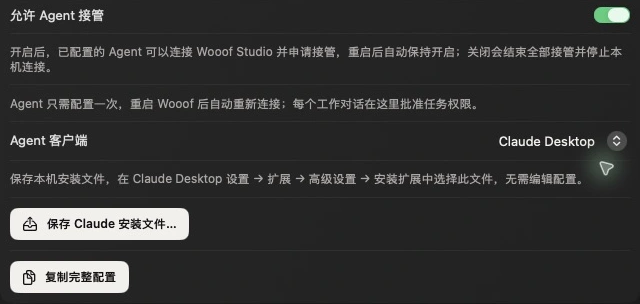
This connection uses Codex on Mac to access Rolin’s local MCP service. The Claude connection uses Claude Desktop.
Approve the task and allowed actions in Rolin first. Connecting alone does not authorize changes.
Yes. Your agent reads and works on the project through Rolin on your Mac. Keep the app and target project open while working.
You can approve a separate budget for supported generation workflows. Read and edit permissions do not automatically enable paid generation.